

To create an MPC format expansion (.XPN) or project template for modern Akai hardware (Live, X, One, Force), you must arrange samples and settings within the MPC desktop software. Use the Expansion Builder tool to bundle WAV samples with artwork into a .XPN file, or use "Save as Template" for custom project setups.
Methods to Create MPC Formats
- Creating MPC Expansions (.XPN).
- Prepare Samples: Organize samples into folders (WAV, 16/24-bit, 44.1 kHz).
- Expansion Builder: Open the Expansion Builder software (installed with MPC software).
- Bundle Assets: Add content, images, and fill in metadata (Manufacturer, Identifier, Version).
- Export: Click "Do It" to create the .XPN file.
- Import: Drag the .XPN file into the MPC Desktop software expansion browser to install.
- Creating Project Templates (.XPJ):Set Up Project: Open a new session, load sounds, arrange drum kits, and add effects.
- Configure Preferences: Set default pad slices, tempos, and plugin instruments.
- Save as Template: Go to the file menu and select "Save as Template" to create a custom starting point.
- Autoload: In Preferences > Project Load/Save, set your template to load automatically.
MPC 2 Desktop And Standalone
Create Expansion Packs
To create your own custom MPC 2 expansion packs and save them to a standalone console, please follow the steps below...
1. Prepare your audio files as 16-bit or 24-bit, 44.1 kHz .wav files and save them to a folder on your computer.
2. Search for the Expansion Builder software on your computer and open it. (The expansion builder software was automatically installed on your computer when installing the MPC software and is a separate application).
3. Make sure that the 'Identifier' name has dots instead of spaces in it and the version number is a one-digit number. This is shown in the picture below…
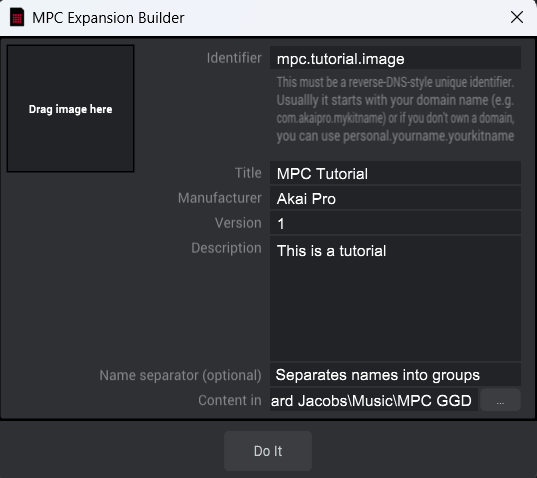
4. Click the 3 dots next to Content In and search for your folder with the samples in it, then double click the folder to set it as the folder path.
5. Click Do It!
6. Open the MPC 2 Desktop Software then click the X button on your keyboard to open the Expansion Browser.
7. Open your computers file explorer, then open the folder where your samples are stored. This folder now contains a .xpn file which was created in steps 4 and 5.
8. Drag and drop the .xpn file into the Expansion Browser in the MPC Desktop software, you will then see it appear as an available expansion.
9. Open the MPC menu by clicking the 3 lines in the top-left corner, then go to File > Export > Expansion…
10. Check the box which corresponds to your newly created expansion, then select Export and select your external USB stick, SD card, or hard drive as the save location, then click Export.
11. Eject your external storage device, then connect it to your MPC Standalone console.
12. Go to the Browse menu, then click on your created expansion under the Places tab. (Alternatively, you can select your external storage drive and find your expansion inside of the Expansions Folder).
13. Find a sample from the kit that you'd like to load, then tap the pad you would like to load it to, then click the Load button in the bottom-right corner of the screen.
14. Repeat step 13 until all of your custom kit samples are assigned to all available pads.
15. Go to the Main screen, then press the rename icon to the right side of the Drum Program section to give your program a name.
16. To save your new pad assignments as a program, tap the pencil icon to the right side of the Drum Program section, then tap Save Current Program and select either your internal hard drive or external hard drive.
17. To reload the program next time, go the Browser menu, find and highlight the saved program's .xpm file from within My Files > Programs under the Content tab, then click Load. Go to the Main screen then you will see the program listed under the Drum Program dropdown menu.
Note: To make your pads light up with different colors, click the pencil icon to the right side of the Drum Program section then click on Pad Color. In this screen, you can assign colors to each pad separately.
The MPC Expansion builder is a powerful tool to expand and tailor your audio toolkit to maximize your productive potential with your MPC. This guide serves to explain the process of obtaining the program for both MPC 2.0 and MPC Beats Users.

Downloading for MPC 2.0
For MPC 2.0 users, downloading and installing the expansion builder is quite simple. The MPC Expansion builder is included with your downloadable software package when downloading MPC 2.0 to your computer.
After you've downloaded, run the MPC 2.0 installer and ensure that the box next to 'MPC Expansion Builder' has been ticket. See the image below for reference:

Once the install has completed, the MPC Expansion builder will now be available.
Downloading for MPC Beats
While the MPC Expansion builder is not included with MPC Beats, it can be obtained and used indefinitely by following the steps outlined below:
- Download and install MPC Beats via the following link: Free DAW Software MPC Beats | Akai Pro
- Once installed, install the trial version of MPC 2.0 via the 'Take a Trial' section of the listing found via the following link: MPC2 Desktop Recording Software DAW | Akai Pro
- Follow the procedure outlined in the "Downloading for MPC 2.0" section above to ensure that the MPC Expansion Builder is installed on your computer.
- The MPC Expansion Builder will now be available within MPC Beats, and will continue to be available even after your trial of MPC 2.0 has ended.