

Omnisphere 3.0 is the flagship synthesizer of Spectrasonics - an instrument of extraordinary power and versatility. Top artists all over the world rely on Omnisphere as an essential source of sonic inspiration. This award-winning software brings many different types of synthesis together into one amazing-sounding instrument that will spark a lifetime of exploration.
Thousands of Fresh New Sounds, Faster Access, Same Size
Truly massive new factory collection of 18 stunning libraries of thousands and thousands of super creative and inspiring new sounds from the award-winning Spectrasonics Sound Design team.
Curated
Rapidly find exactly the sounds you need within the highly curated new libraries, meticulously organised by type of use.
Remastered
All of the original classic Omnisphere patches have been carefully remastered and refreshed with the latest v3 features and Effects.
Optimized
With new lossless optimisation technology, the stunning Omnisphere 3 sound library actually takes NO MORE hard drive space than Omnisphere 2.
New Adaptive Global Controls
Quickly
customize the overall sound of a patch with the new adaptive global
controls that allow easy tweaks to the most important sound
characteristics:
- ToneAmbience
- Filter
- Envelope
- Vibrato
- Unison
These smart controls automatically analyse the patch, so they always work with musical results…no matter what patch you select.
New Patch Mutations
At the click of a button, Omnisphere 3 can now instantly create fascinating and useful variations of any patch - from Subtle to Extreme! Every mutation you generate is automatically saved and you can easily come back to them later.

Omnisphere 3.0 System Requirements
All Users
- • 2.4 GHz or higher processor
- • 8GB of RAM, 16GB or more recommended
- • 64GB of free hard drive space
Mac Users
- • macOS 13 Ventura or higher
- • AU, VST3, VST2, AAX capable host software
- • Intel and Apple Silicon Native
- • 64-bit host
Adding Instruments to Ableton
These steps are the same in both the Mac & Windows versions of Live, but the Mac version may have both AU and VST/VST3 plugins available. Windows will simply list the VSTs and VST3s. On a Mac, be sure that you've enabled AU and VST usage in Live's Preferences. These steps also apply to Trilian, Keyscape, and Stylus RMX.
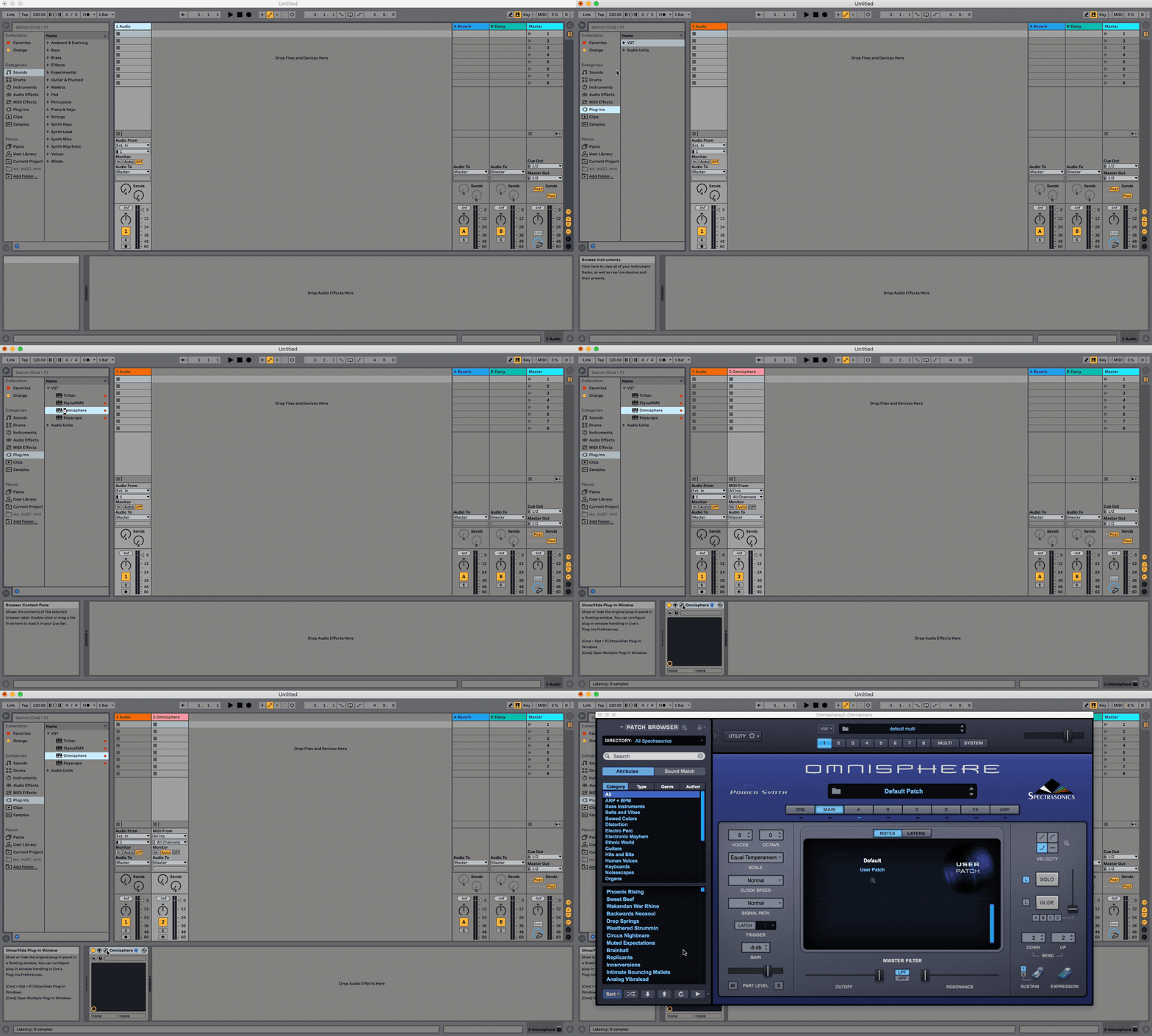
1. Navigate to the Plug-Ins list shown on the left side of Live's window. Open the VST (or Audio Units folder if on Mac) then double-click on your Spectrasonics instrument.
Note: If you're using a Mac, you have the ability to load an Audio Unit or VST format of your instruments. Either format is fine, however you must choose one format for all your Spectrasonics instruments per session.
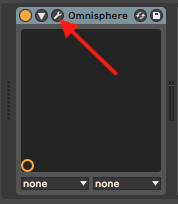
2. To open the instrument interface by selecting the Plug-In Edit icon in the instrument track.
Here are some downloadable templates which you can use in Ableton Live: